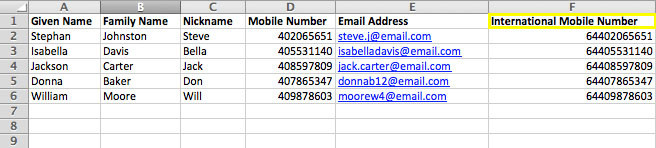
The steps below explain how to correctly structure your spreadsheet before uploading contacts into CXT.
1. Set up your CSV file
• Open a new Excel workbook and save it as a .CSV (Comma Delimited) file.
• In the first row, add your column headers (field merges).
Recommended default headers for CXT include:
• Family Name
• Display or Nickname
• Email Address
• Given Name
• Mobile Number
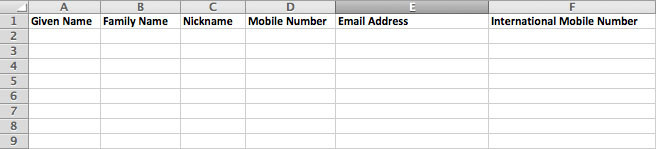
Note: Only include the fields you need for your contact list.
If you’re sending SMS within your default country in CXT, mobile numbers may be entered in domestic format (e.g., starting with 0).
For example, Australia’s country code is 61, so a domestic number like 04555224190 is acceptable.
If you need to convert domestic numbers to international format, continue to the next step.
2. Add a formula to convert mobile numbers to international format
• Click the cell next to your first mobile number (e.g., F2).
• Enter a formula that adds the correct international prefix to the domestic number:
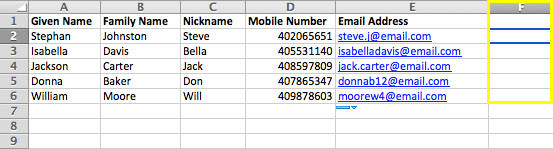
Example:
If your mobile numbers are in column D, starting at row 2, and you’re adding the New Zealand country code (64):
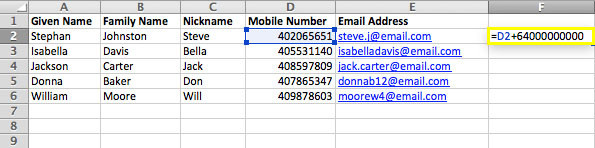
Refer to the International Codes list for other country prefixes.
3. Apply the formula to the entire column
• Grab the corner of the green fill handle and drag it down the column.
• Excel will automatically convert all mobile numbers into international format using your formula.
4. Label and use your new international number column
• Give this new column a clear name, such as International Mobile Number.
• When uploading your contact list to CXT, select this column as your Mobile Number field.